iPhone · 2:57
Download MP4 · Download subtitles
Real recordings of version 1.0.0: iOS build 15 / Mac build 10. These candidate builds include the first-launch guide shown here. The local test-server address in the videos must be replaced with your own NAS address.
Download MP4 · Download subtitles
Download MP4 · Download subtitles
Download MP4 · Download subtitles
FrameIsle plays your own videos. No account is needed, and no movies are included.
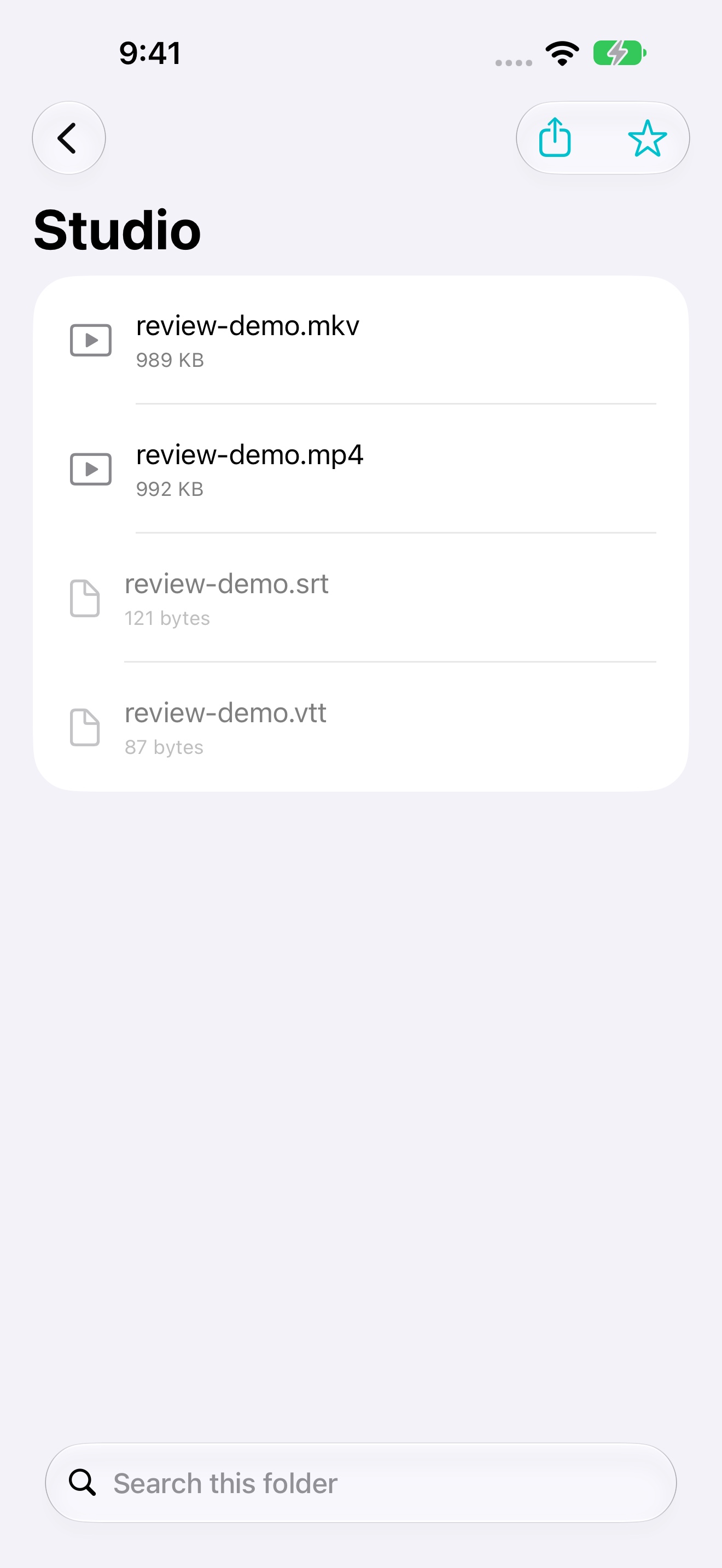
Choose Add Local Folder, then select and authorize a folder in the system picker. Download cloud files first. Videos in Photos must first be saved to Files or a folder.
Choose Add Connection. Enter the server address, protocol and account, then test and save. SMB discovers shared folders automatically; leave the advanced share path blank unless needed. WebDAV requires the server's port and root path; use HTTPS when available.
Your device must be able to reach the server. On iPhone and iPad, allow local network access when asked. Check Wi-Fi, server permissions and credentials if a folder cannot be opened.
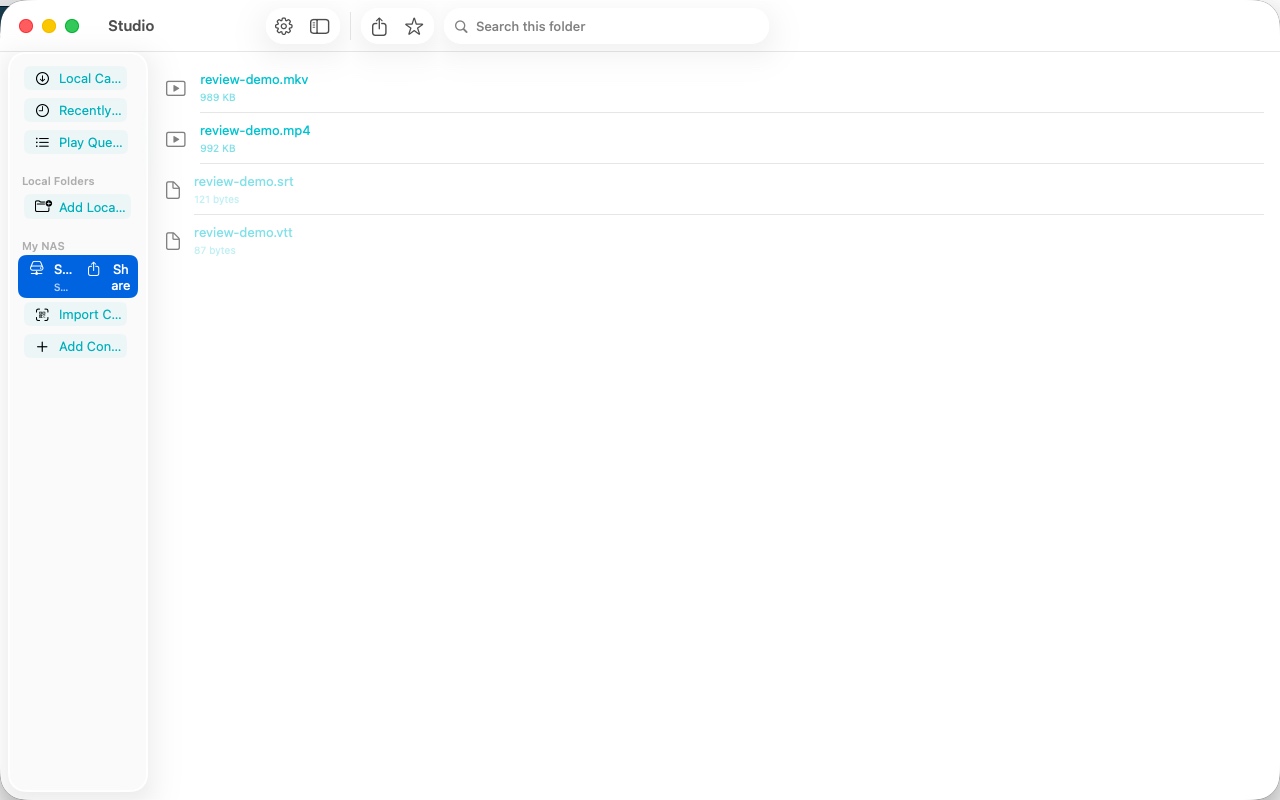
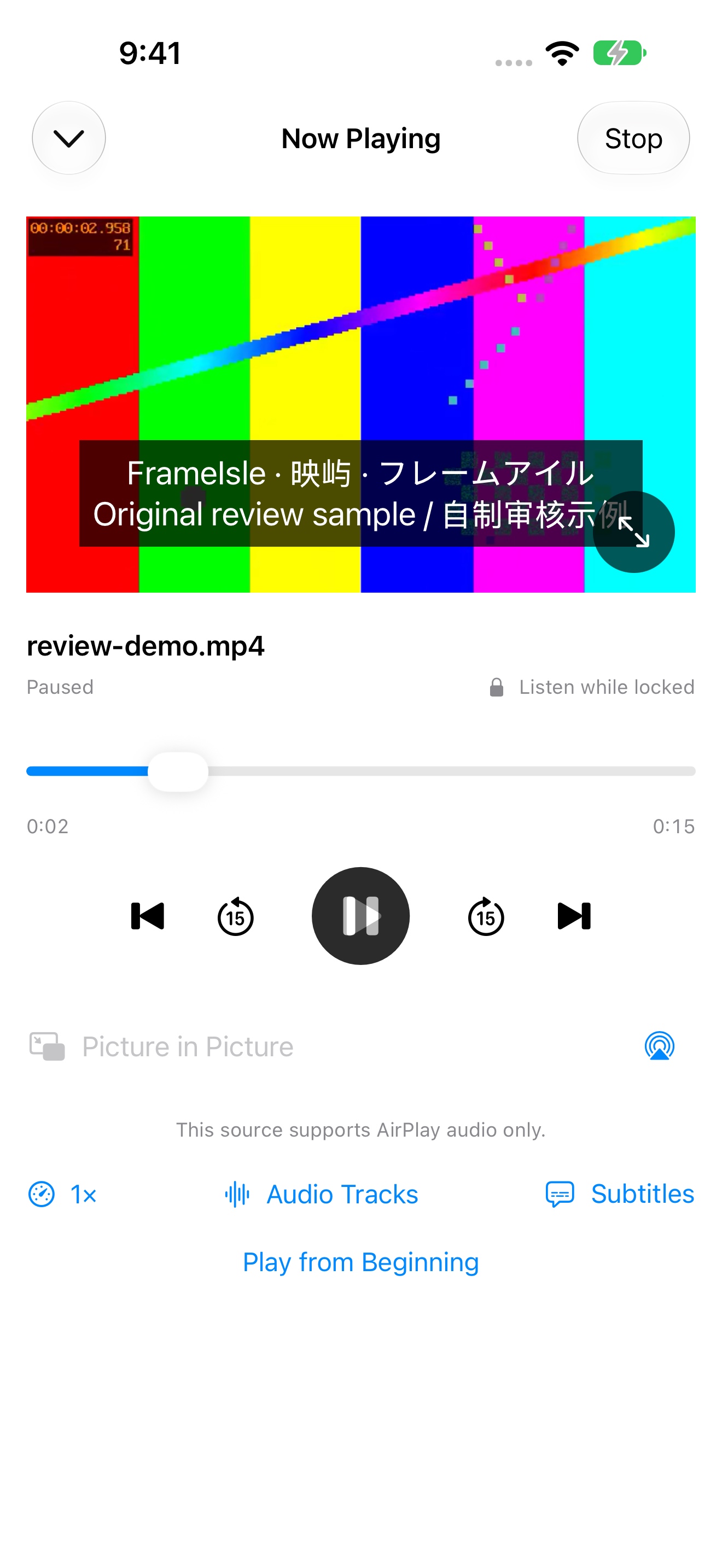
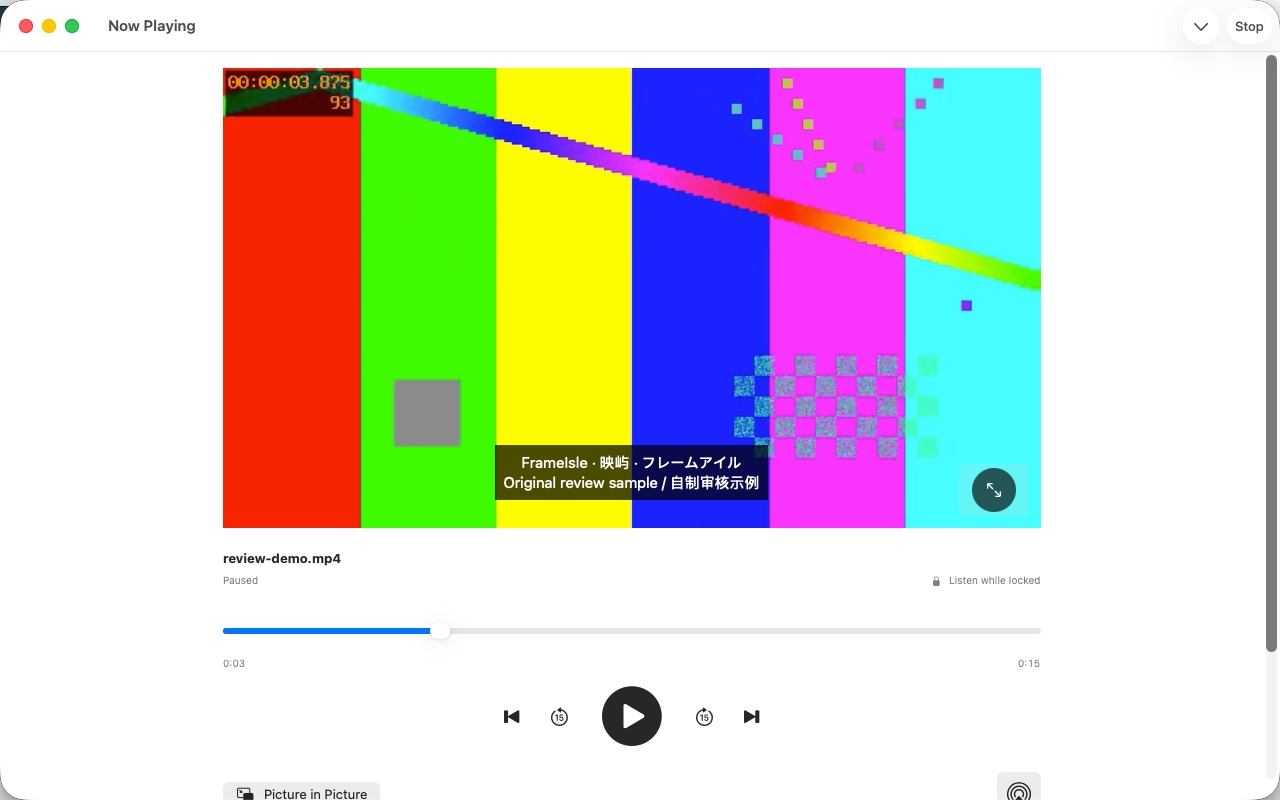
Open a video to play. Use the progress slider to seek, or skip 15 seconds. In full screen, tap the picture to show controls and use the exit button to return. Audio tracks, subtitles and speed are available in the player.
Recently Played keeps your position. Use the video menu to add items to the queue. Files without a usable index may not support seeking.
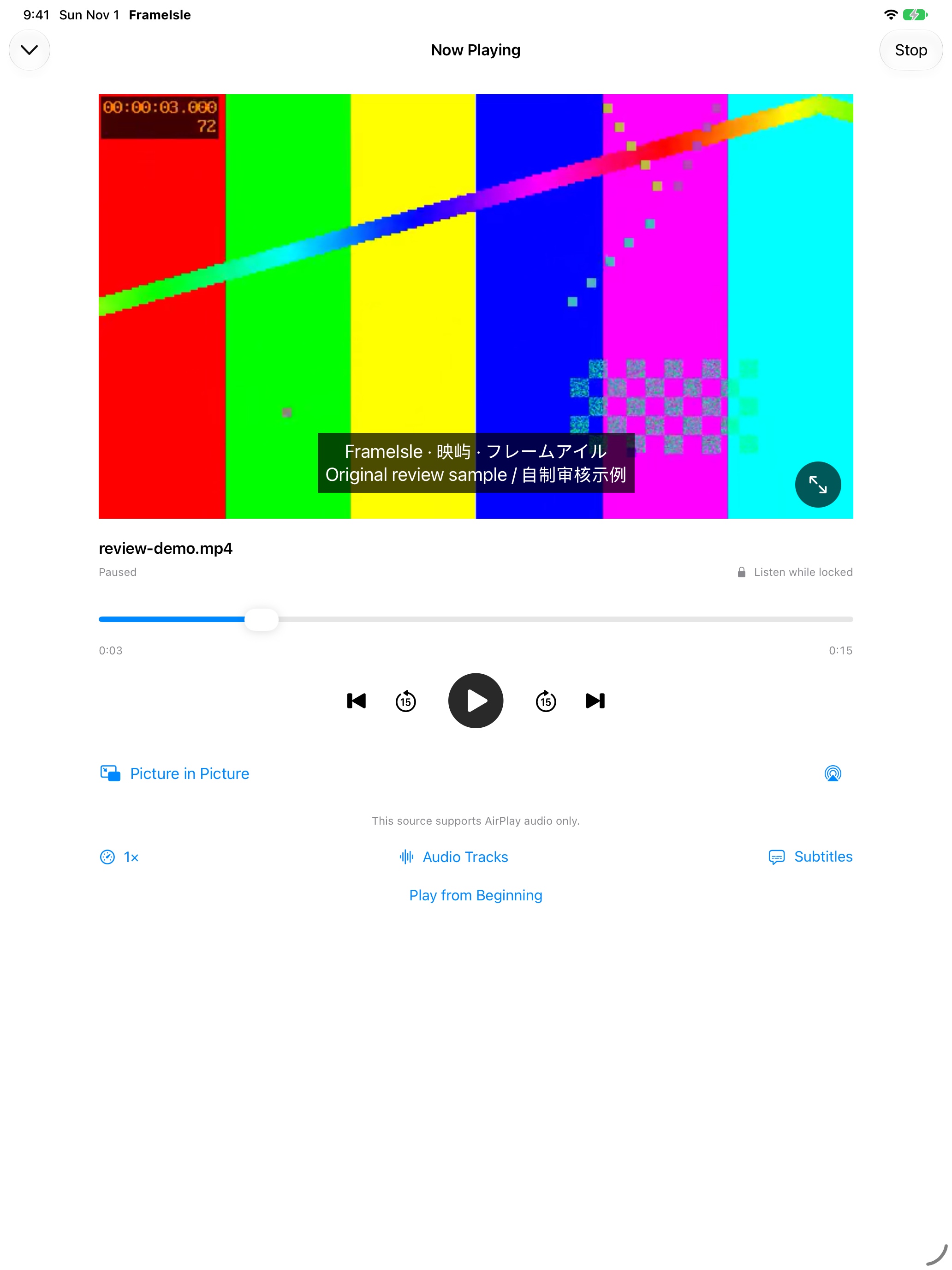
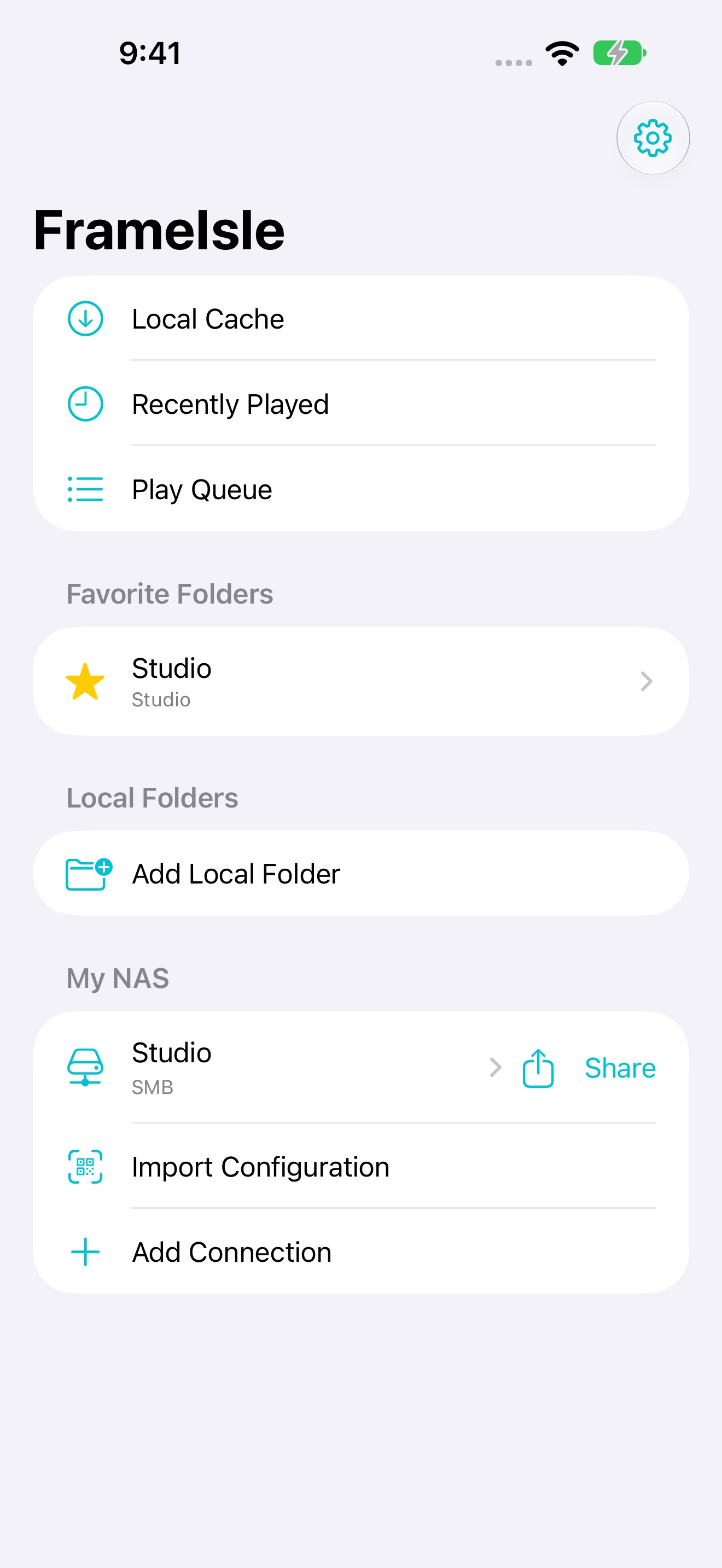
Open a folder and choose the star in the toolbar. It appears under Favorite Folders on the home screen. Removing a favorite does not delete its videos.
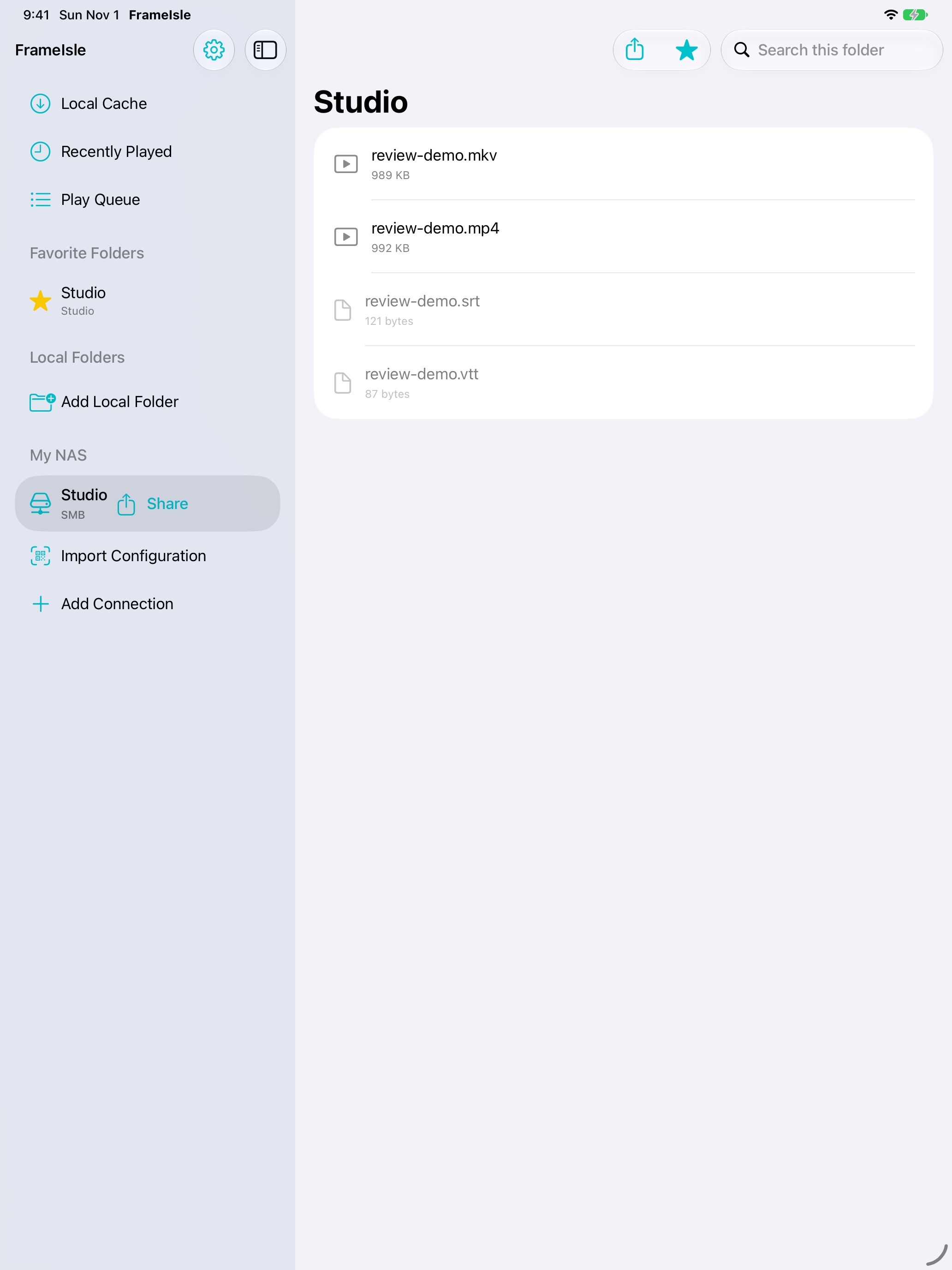
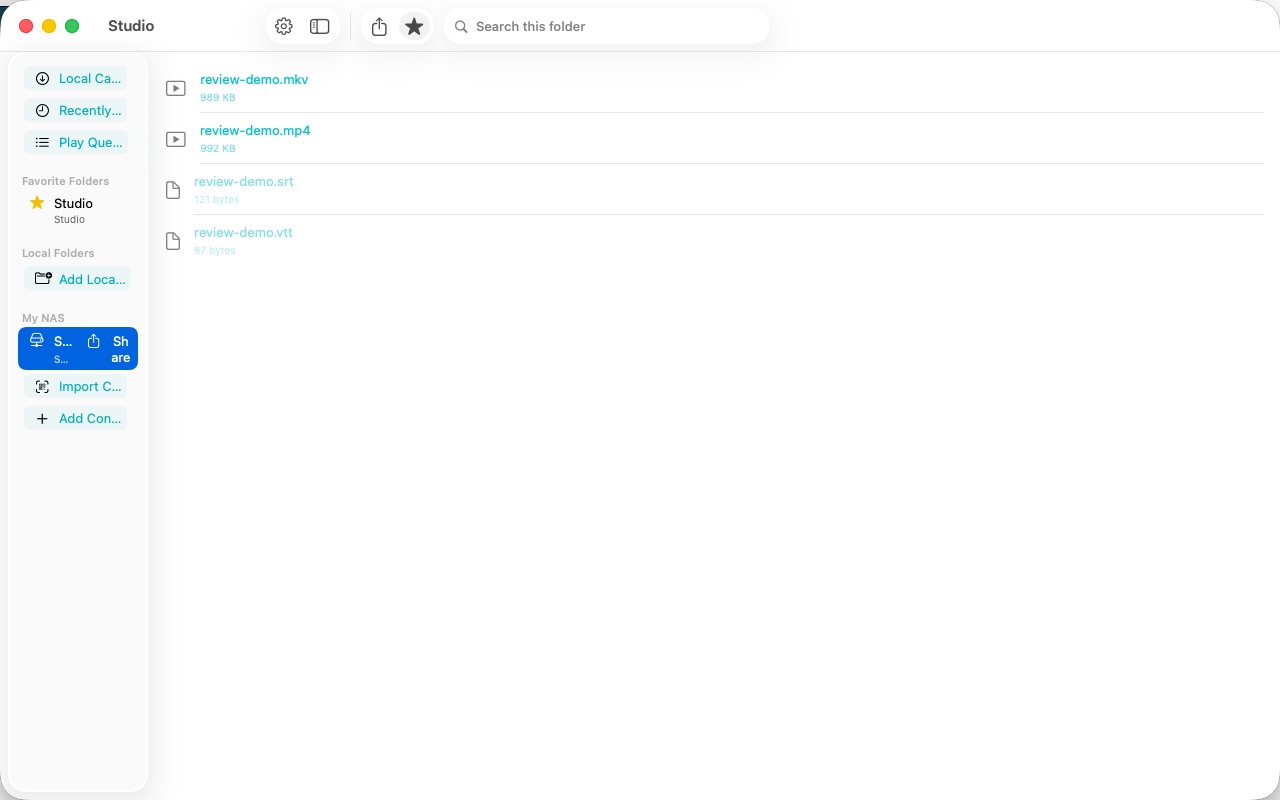
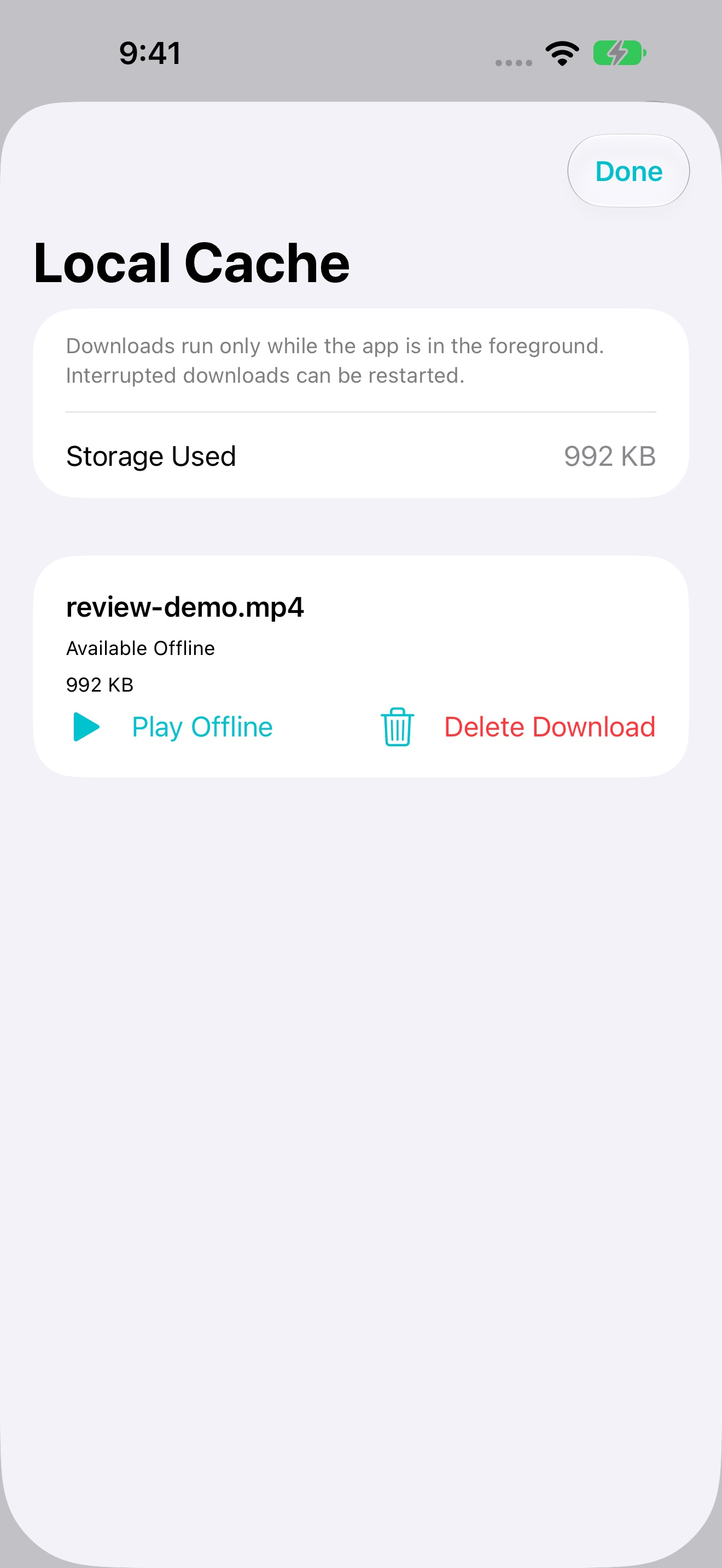
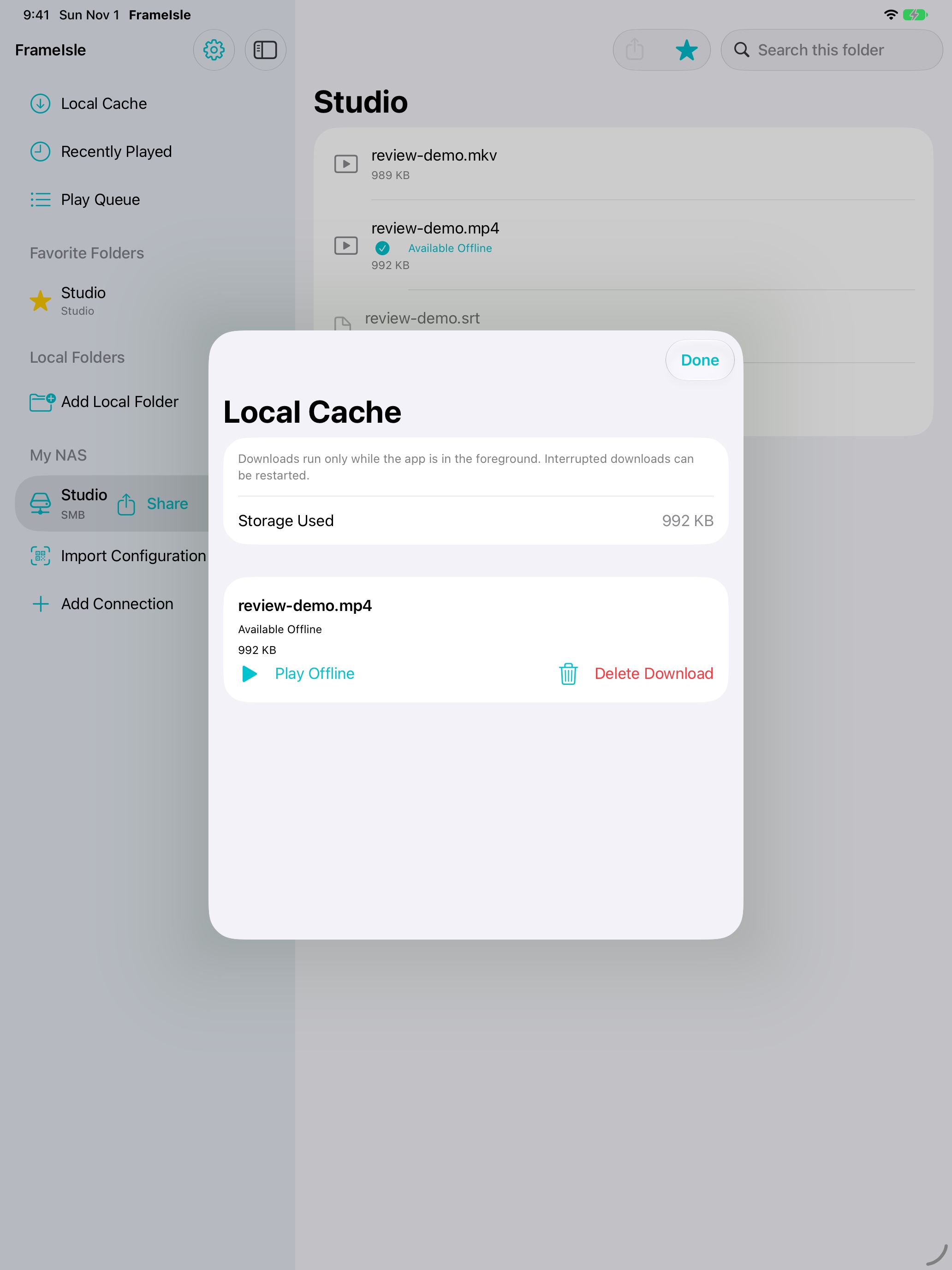
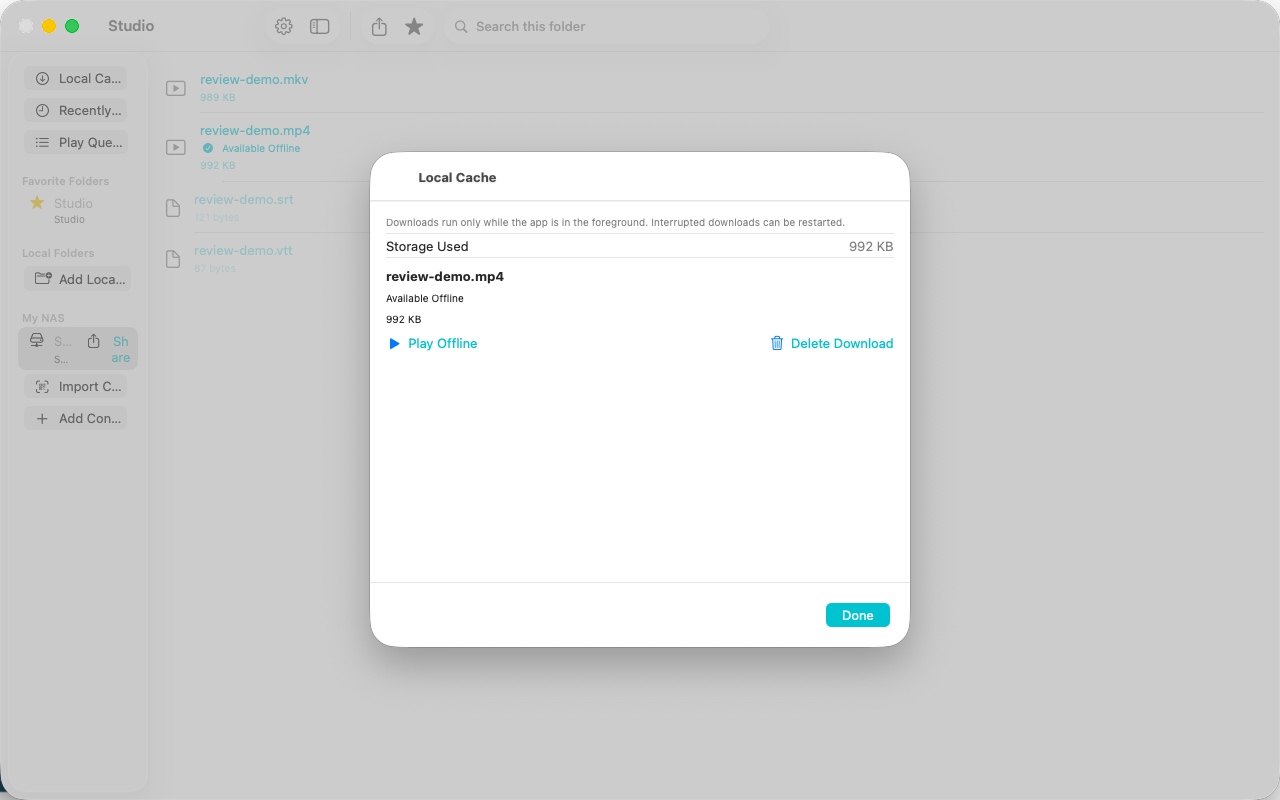
Touch and hold a NAS video, or right-click on Mac, and choose Cache Locally. Keep FrameIsle in the foreground until it finishes. Open Local Cache to play, cancel, retry or delete a download. Deleting a cache removes only the local copy, never the NAS original.
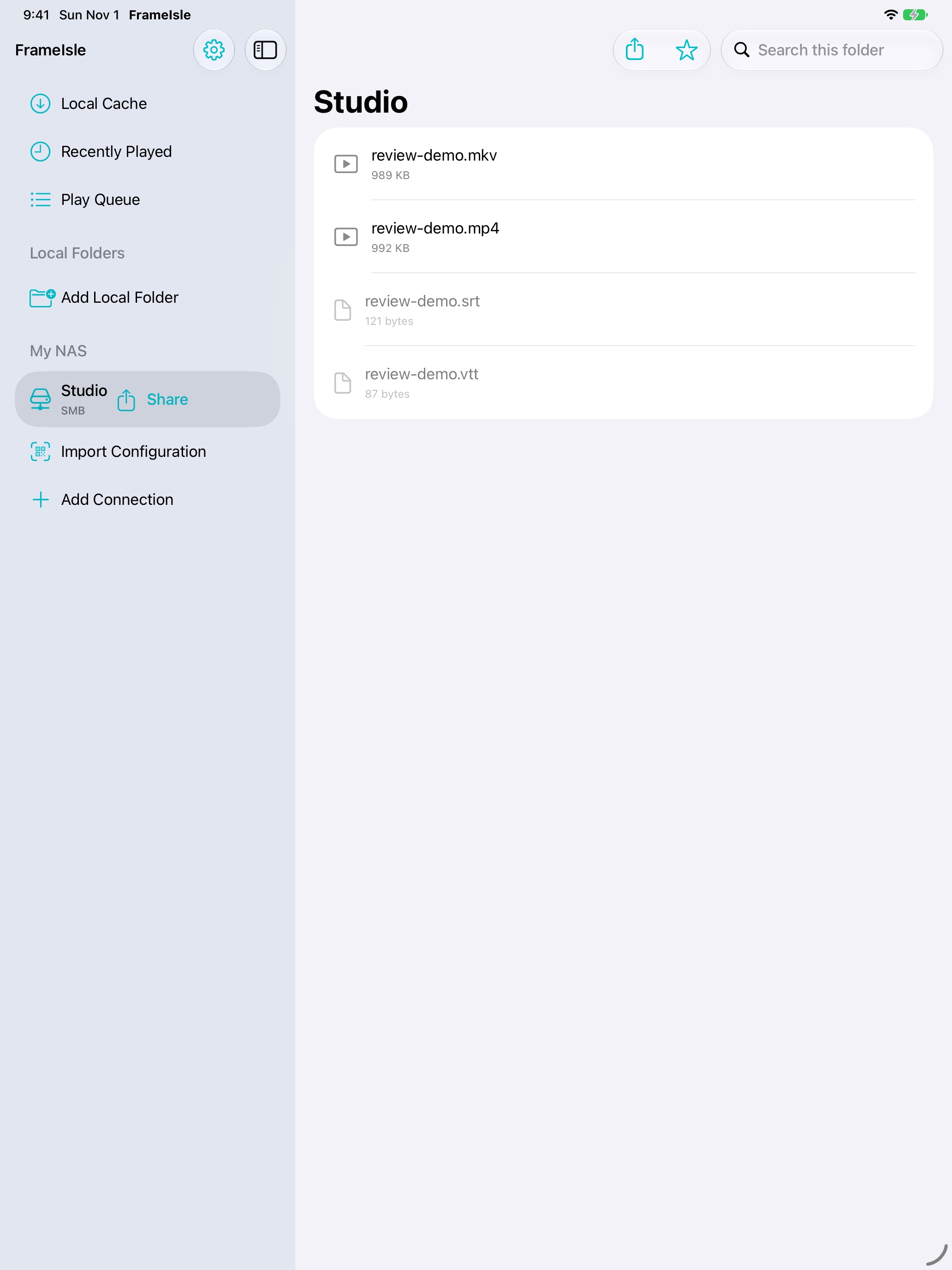
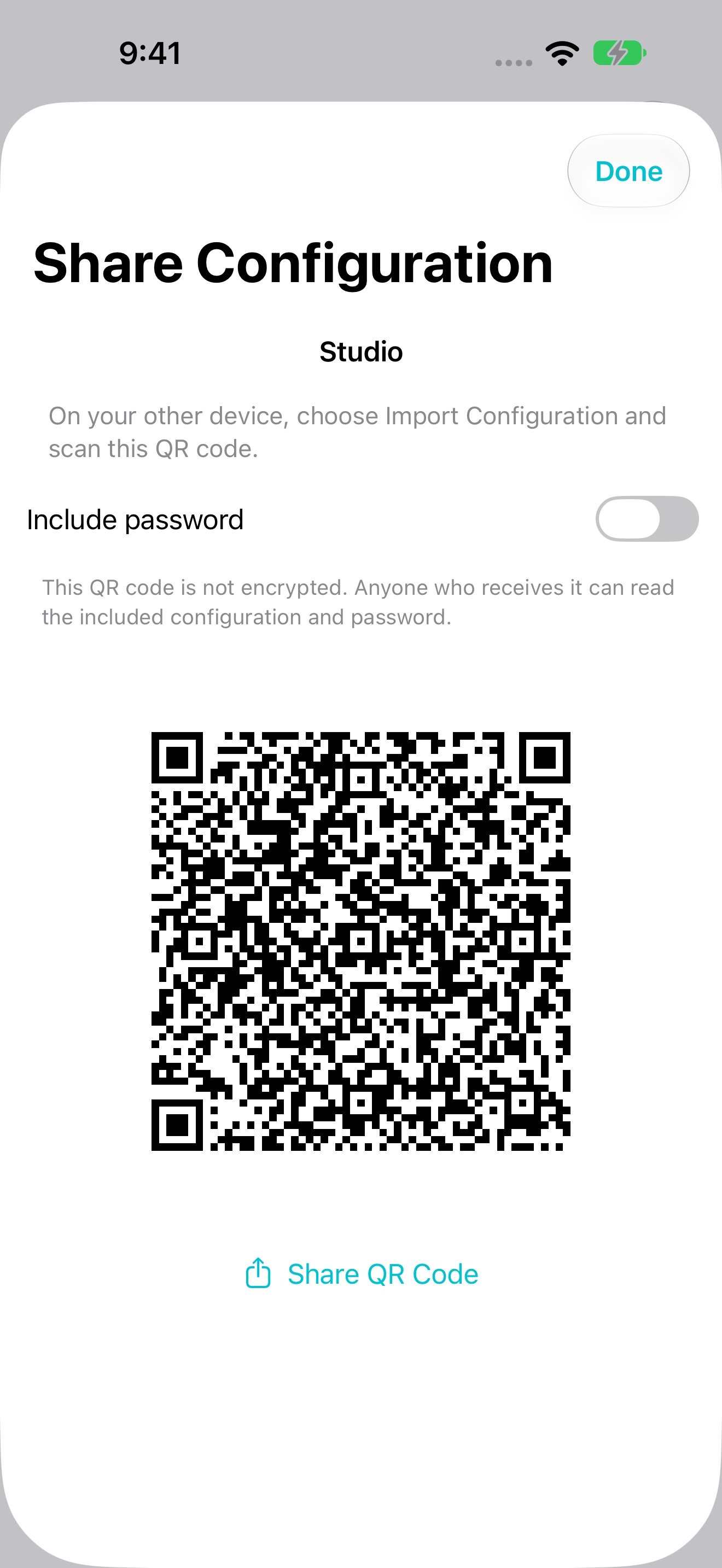
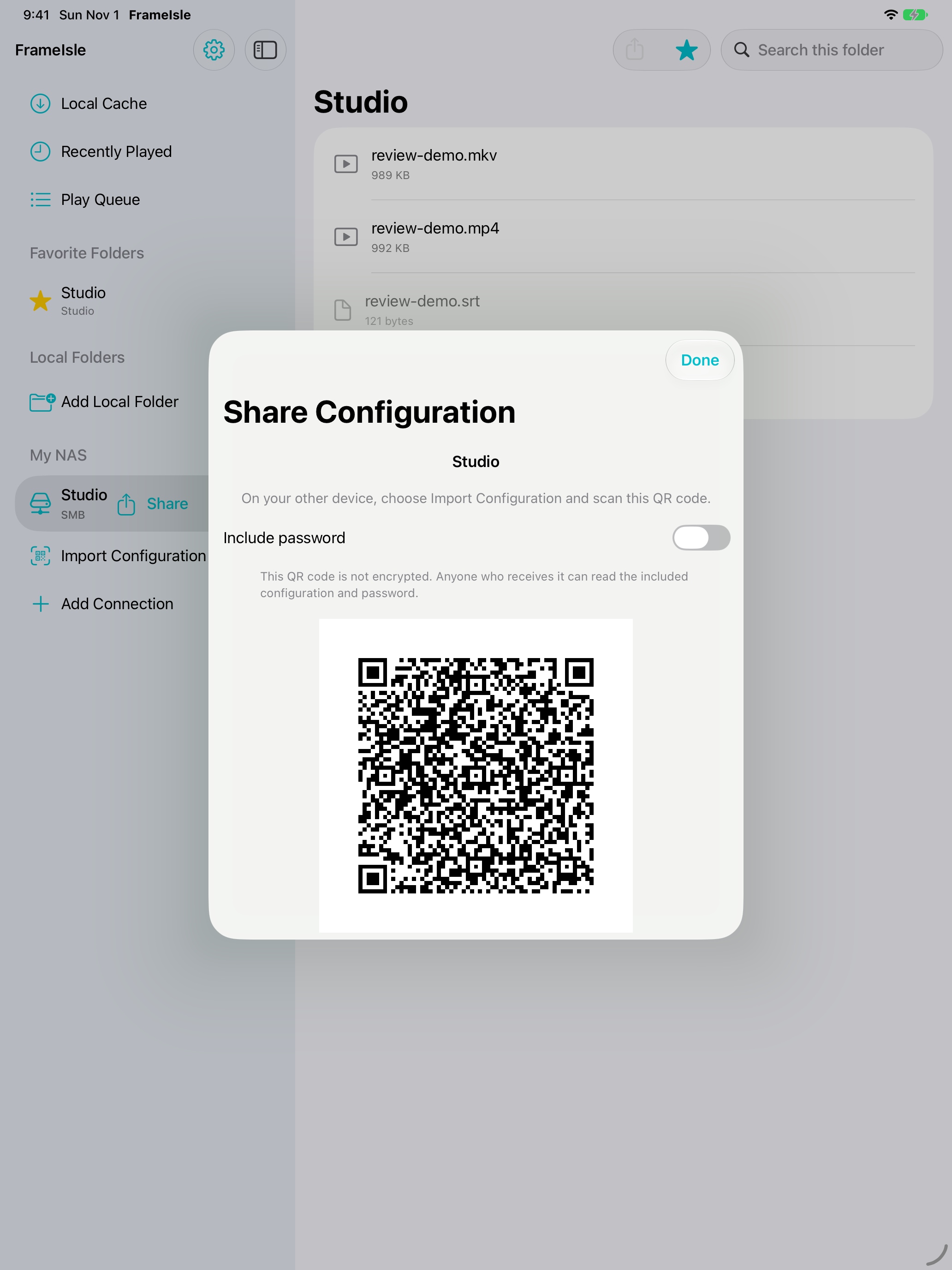
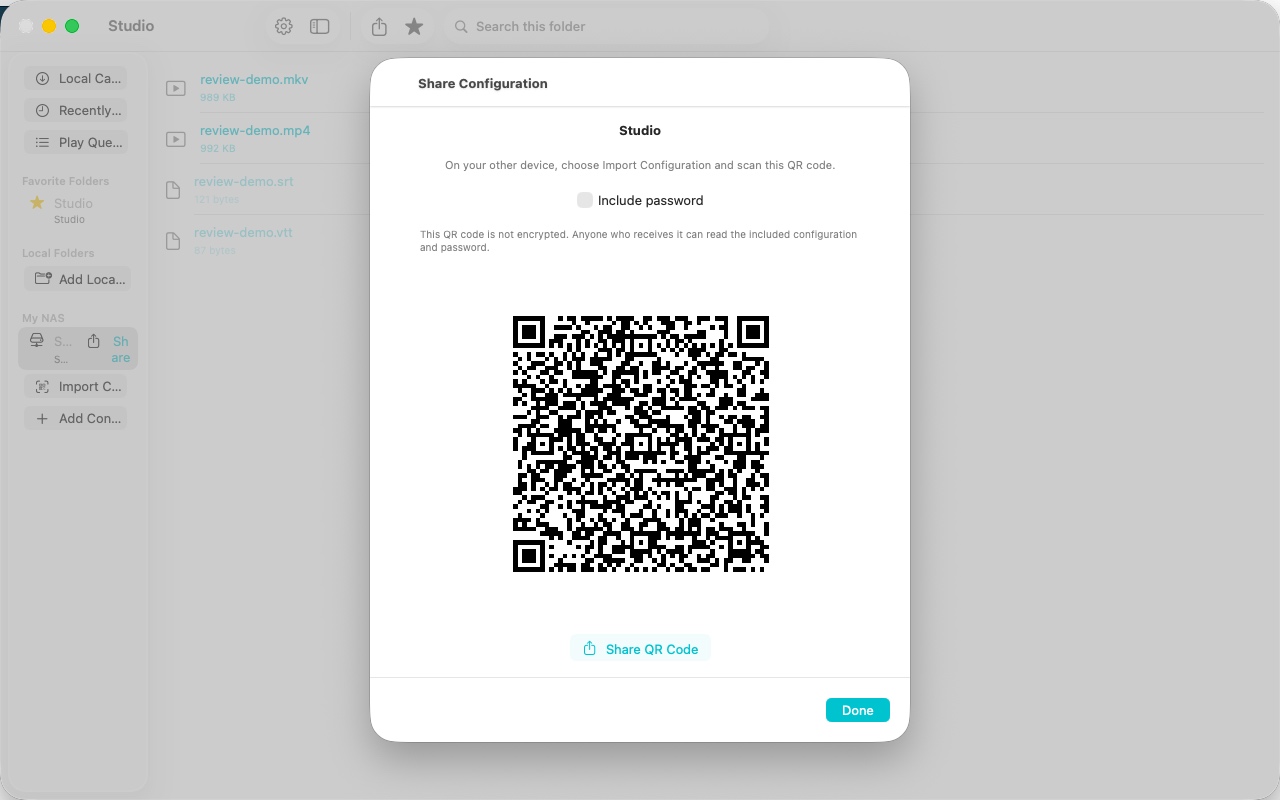
Choose Share beside a NAS connection, or in its browser toolbar. On the other device choose Import Configuration. Review the address before saving; importing creates a separate connection.
Scan with the camera or choose a QR image. If camera access is denied, use image import instead.
On Mac, import a saved QR image file. Camera scanning is available on iPhone and iPad.
Passwords are excluded by default. If you include one, anyone who receives the unencrypted QR image can read it.
Use MP4, M4V, MOV or compatible H.264/HEVC MKV. Audio support depends on your device. AVI, TS, WebM, DTS, TrueHD and MKV Dolby Vision are not supported in this version.
Place same-name SRT or VTT subtitles beside the video, then select them in the player. MKV ASS/SSA appears as plain text; bitmap subtitles are unsupported. Picture in Picture does not show overlay subtitles.
Start a video with a playable audio track before locking your device. Use the lock-screen playback controls, then unlock to return to the picture. Force-quitting FrameIsle stops playback.
Playback can continue while you use another app. Keep your Mac awake; sleep stops playback.